


[ad_1]
Data strategy can use geospatial data to provide organizations with insights for decision-making and operational optimization. By incorporating geospatial data (such as GPS coordinates, points, polygons and geographic boundaries), businesses can uncover patterns, trends, and relationships that might otherwise remain hidden across multiple industries, from aviation and transportation to environmental studies and urban planning. Processing and analyzing this geospatial data at scale can be challenging, especially when dealing with billions of daily observations.
In this post, we explore how to use Apache Sedona with AWS Glue to process and analyze massive geospatial datasets.
Introduction to geospatial data
Geospatial data is information that has a geographic component. It describes objects, events, or phenomena along with their location on the Earth’s surface. This data includes coordinates (latitude and longitude), shapes (points, lines, polygons), and associated attributes (such as the name of a city or the type of road).
Key types of geospatial geometries (and examples of each in parentheses) include:
- Point – Represents a single coordinate (a weather station).
- MultiPoint – A collection of points (bus stops in a city).
- LineString – A series of points connected in a line (a river or a flight path).
- MultiLineString – Multiple lines (multiple flight routes).
- Polygon – A closed area (the boundary of a city).
- MultiPolygon – Multiple polygons (national parks in a country).
Geospatial datasets come in different formats, each designed to store and represent different types of geographic information. Common formats for geospatial data are vector formats (Shapefile, GeoJSON), raster formats (GeoTIFF, ESRI Grid), GPS formats (GPX, NMEA), web formats (WMS, GeoRSS) among others.
Core concepts of Apache Sedona
Apache Sedona is an open-source computing framework for processing large-scale geospatial data. Built on top of Apache Spark, Sedona extends Spark’s capabilities to handle spatial operations efficiently. At its core, Sedona introduces several key concepts that enable distributed spatial processing. These include Spatial Resilient Distributed Datasets (SRDDs), which allow for the distribution of spatial data across a cluster, and Spatial SQL, which provides a familiar SQL-like interface for spatial queries. Some of the core capabilities of Apache Sedona are:
- Efficient spatial data types like points, lines and polygons.
- Spatial operations and functions such as
ST_Contains(check if point is inside of a polygon),ST_Intersects(check if point is inside of a polygon),ST_H3CellIDs(geospatial indexing system developed by Uber, return the H3 cell ID(s) that contain the given point at the specified resolution). - Spatial joins to combine different spatial datasets.
- Integration with Spark SQL (geospatial functions to run spatial SQL queries).
- Spatial indexing techniques, such as quad-trees and R-trees, to optimize query performance.
For more information about the functions available in Apache Sedona, visit the official Sedona Functions documentation.
Use case
This use case consists of a global air traffic visualization and analysis platform that processes and displays real-time or historical aircraft tracking data on an interactive world map. Using unique aircraft identifiers from the International Civic Aviation Organization (ICAO), the system ingests trajectory records containing information such as geographic position (latitude and longitude), altitude, speed, and flight direction, then transforms this raw data into two complementary visual layers. The Flight Tracks Layer plots the routes traveled by each aircraft individually, allowing for the analysis of specific trajectories and navigation patterns. The Flight Density Layer uses hexagonal spatial indexing (H3) to aggregate and identify regions of higher air traffic concentration worldwide, revealing busy air corridors, aviation hubs, and high-density flight zones.
The dataset used for this use case is historical flight tracker data from ADSB.lol. ADSB.lol provides unfiltered flight tracker with a focus on open data. Data is also freely available via the API. The data contains a file per aircraft, a JSON gzip file containing the data for that aircraft for the day.
This is a JSON trace file format sample:
For this use case, this is a simplified schema of the dataset after processing:
icao -Unique aircraft identifiertimestamp -Epoch timestamp of the observation (converted to readable format)trace.lat / trace.lon -Latitude and longitude of the aircrafttrace.altitude -Aircraft altitudetrace.ground_speed -Ground speedgeometry -Geospatial geometry of the observation point (Point)
Solution overview
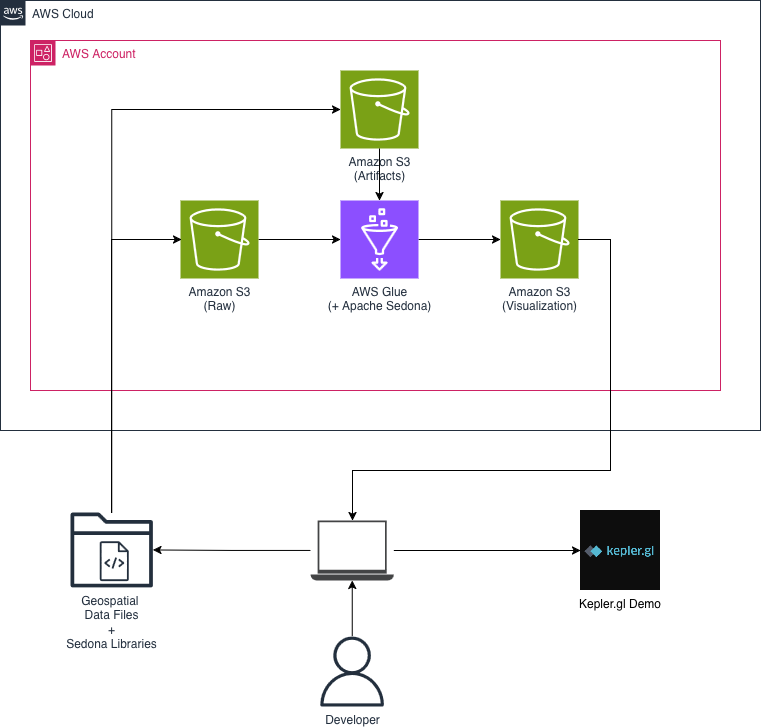
This solution enables aircraft tracking and analysis. The data can be visualized on maps and used for aviation management and safety applications. The process begins with data acquisition, extracting the compressed JSON files from TAR archives, then transforms this raw data into geospatial objects, aggregating them into H3 cells for efficient analysis. The processed data schema includes ICAO aircraft identifiers, timestamps, latitude/longitude coordinates, and derived fields such as H3 cell identifiers and point counts per cell. This structure allows detailed tracking of individual flights and aggregate analysis of traffic patterns. For visualization, you can generate density maps using the H3 grid system and create visual representations of individual flight tracks. The architecture data flow is as follows:
- Data ingestion – Aircraft observation data stored as JSON compressed files in Amazon Simple Storage Service (Amazon S3).
- Data processing – AWS Glue jobs using Apache Sedona for geospatial processing.
- Data visualization – Spark SQL with Sedona’s spatial functions to extract insights and export data to visualize the information in a map on Kepler.gl.
The following figure illustrates this solution.
Prerequisites
You will need the following for this solution:
- An AWS Account and a user with AWS Console access.
- Access to a Linux terminal and the AWS Command Line Interface (AWS CLI).
- An IAM role for AWS Glue with list, read, and write permissions for Amazon S3 buckets.
- An Amazon S3 Bucket for flight files. For this example, name the bucket
blog-sedona-nessie-, using your account number and region.- - An Amazon S3 bucket for artifacts and Sedona libraries. For this example, name the bucket
blog-sedona-artifacts-, using your account number and region.- - Download a day of historical data from ADSB.lol. In our examples, we used v2025.05.29-planes-readsb-prod-0tmp.tar.aa and v2025.05.29-planes-readsb-prod-0tmp.tar.ab.
- Download the Apache Sedona libraries. The example was created using sedona-spark-shaded-3.5_2.12-1.7.1.jar and geotools-wrapper-1.7.1-28.5.jar.
- Download the AWS Glue script from AWS Sample to process the geospatial data.
- Review the AWS Glue security best practices, especially IAM least-privilege, encryption for sensitive data at rest and in transit, and configuring VPC Endpoints to prevent data from routing through the public internet.
Solution walkthrough
From now on, executing the next steps will incur costs on AWS. This step-by-step walkthrough demonstrates an approach to processing and analyzing large-scale geospatial flight data using Apache Sedona and Uber’s H3 spatial indexing system, using AWS Glue for distributed processing and Apache Sedona for efficient geospatial computations. It explains how to ingest raw flight data, transform it using Sedona’s geospatial functions, and index it with H3 for optimized spatial queries. Finally, it also demonstrates how to visualize the data using Kepler.gl. For data processing, it is possible to use both Glue scripts and Glue notebooks. In this post, we will focus only on Glue scripts.
Upload the Apache Sedona libraries to Amazon S3
- Open your OS terminal command line.
- Create a folder to download the Sedona libraries and name it jar.
# Create a directory for the Sedona libraries (JARs files) mkdir jar # Go to the folder JARs folder cd jar - Download the Apache Sedona libraries.
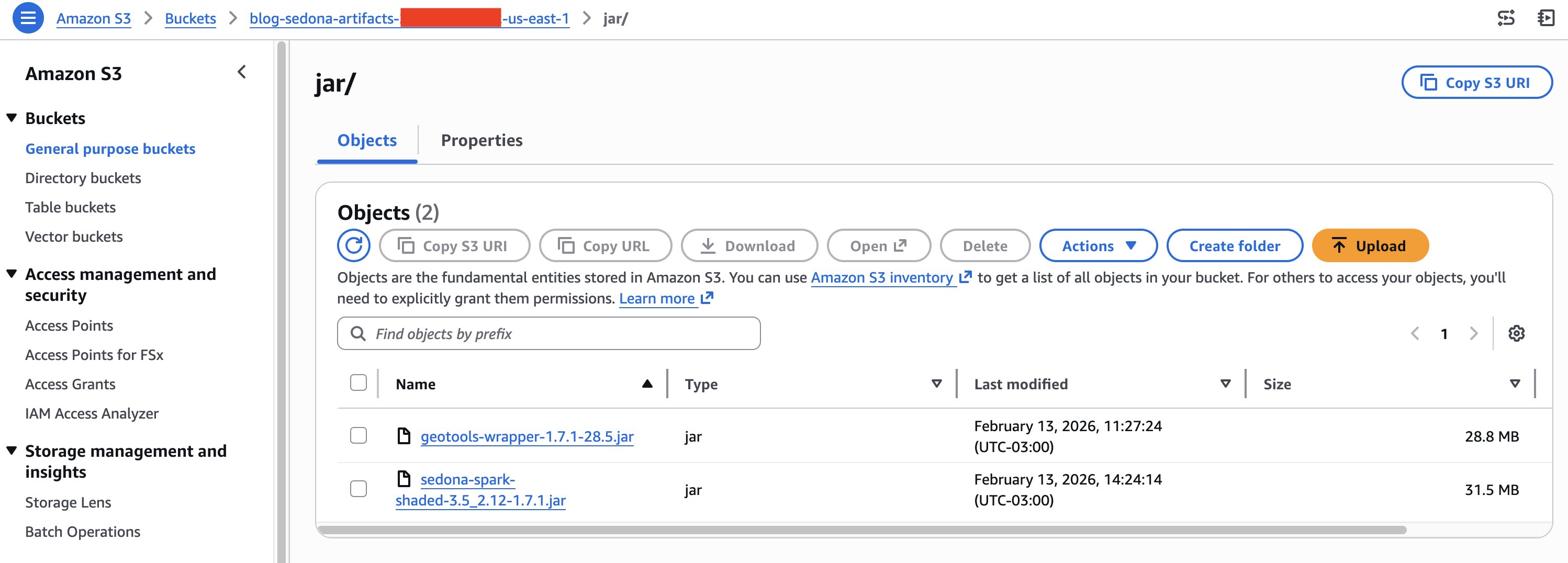
# Download required Sedona libraries (JARs files) wget wget - Upload the Sedona libraries (JARs files) to Amazon S3. In this example, we use the S3 path
s3://aws-blog-post-sedona-artifacts/jar/.# Upload the JARs files to Amazon S3 bucket aws s3 cp . s3://blog-sedona-artifacts-- /jar/ --recursive - Your Amazon S3 folder should now look similar to the following image:
Download and upload the geospatial data to Amazon S3
- Open your OS terminal command line.
- Create a folder to download the flight files and name it adsb_dataset.
# Create a directory for download the geospatial flight files mkdir adsb_dataset # Go to the folder for geospatial flight files cd adsb_dataset - Download the flight files data from adsblol GitHub repository.
# Download the geospatial flight files in the folder created wget wget - Extract the flight files.
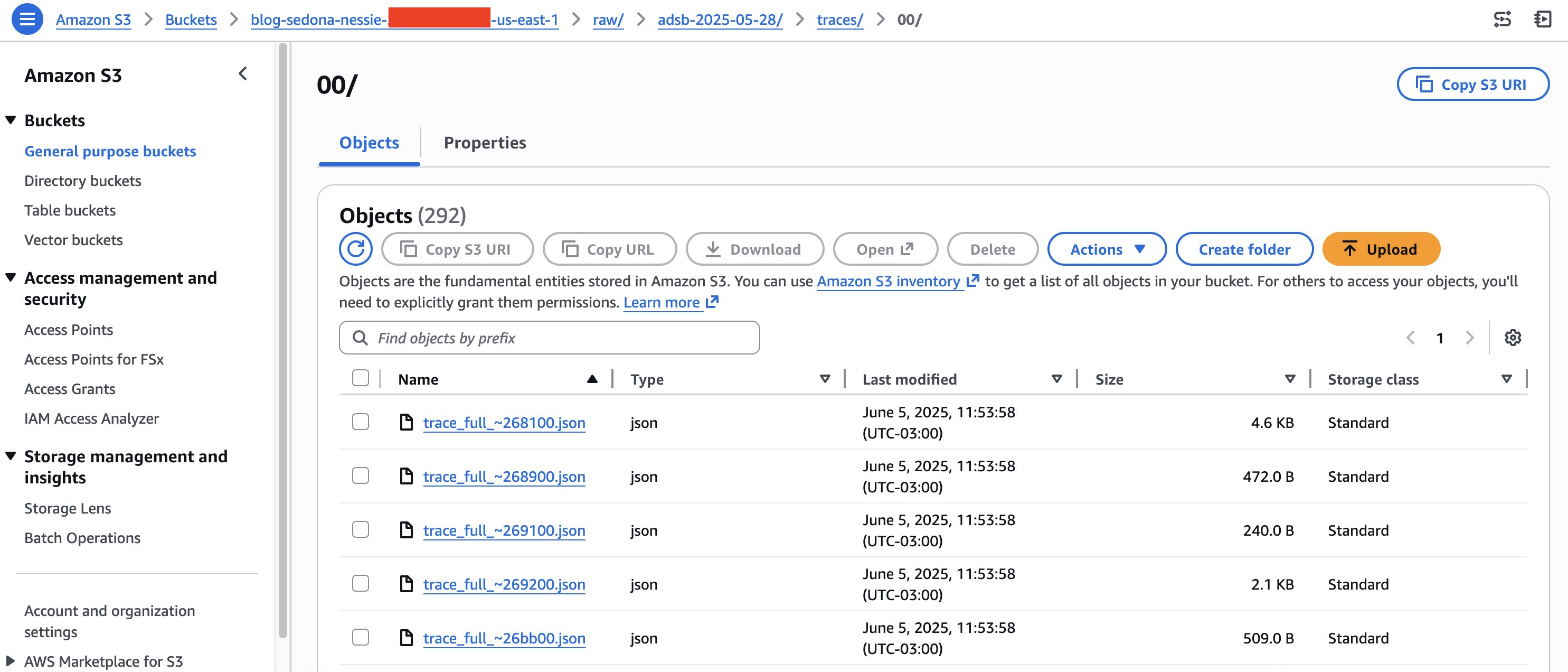
# Combine the two the tar files together cat v2025.05.29* >> combined.tar # Extract the json flight files from the tar file tar xf combined.tar - Copy the flight files to Amazon S3. In this case, we are using the S3 folder:
s3://blog-sedona-nessie-.- /raw/adsb-2025-05-28/traces/ # Copy the json flight files to Amazon S3 aws s3 cp ./traces/ s3://blog-sedona-nessie-- /raw/adsb-2025-05-28/traces/ --recursive - Your Amazon S3 folder should now look similar to the following image.
Create an AWS Glue job and set up the job
Now, we are ready to define the AWS Glue job using Apache Sedona to read the geospatial data files. To create a Glue job:
- Open the AWS Glue console.
- On the Notebooks page, choose Script editor.
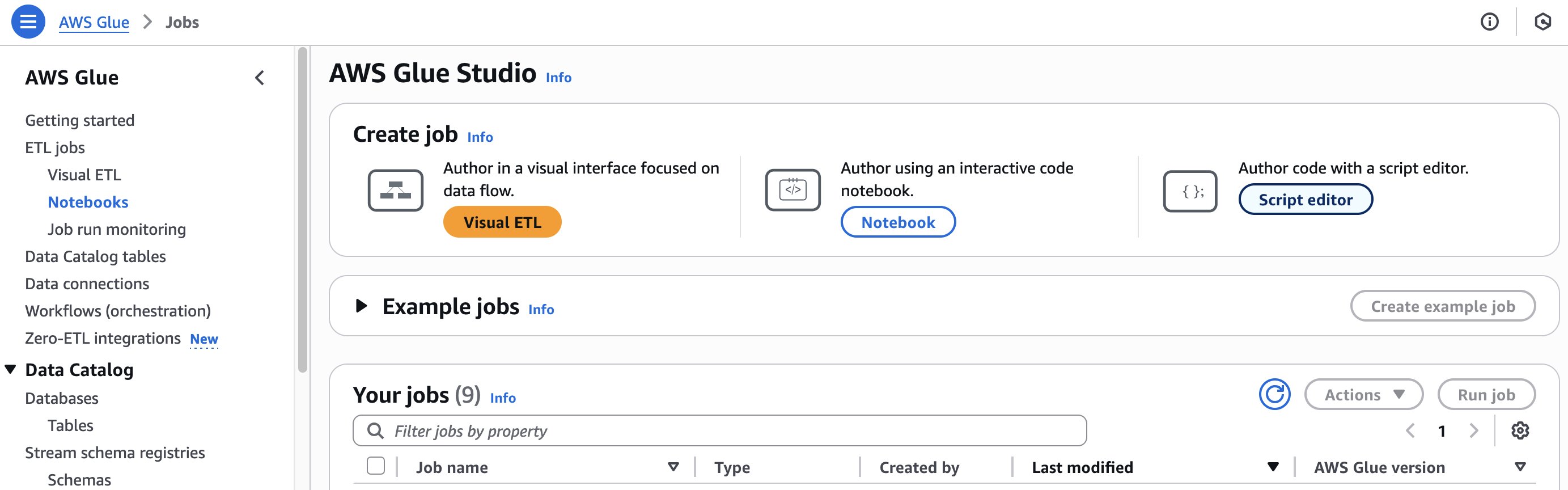
- On the Script screen, for the engine, choose Spark, then select the option Upload script.
- Choose Choose file. Find the
process_sedona_geo_track.pyfile, then choose Create script.
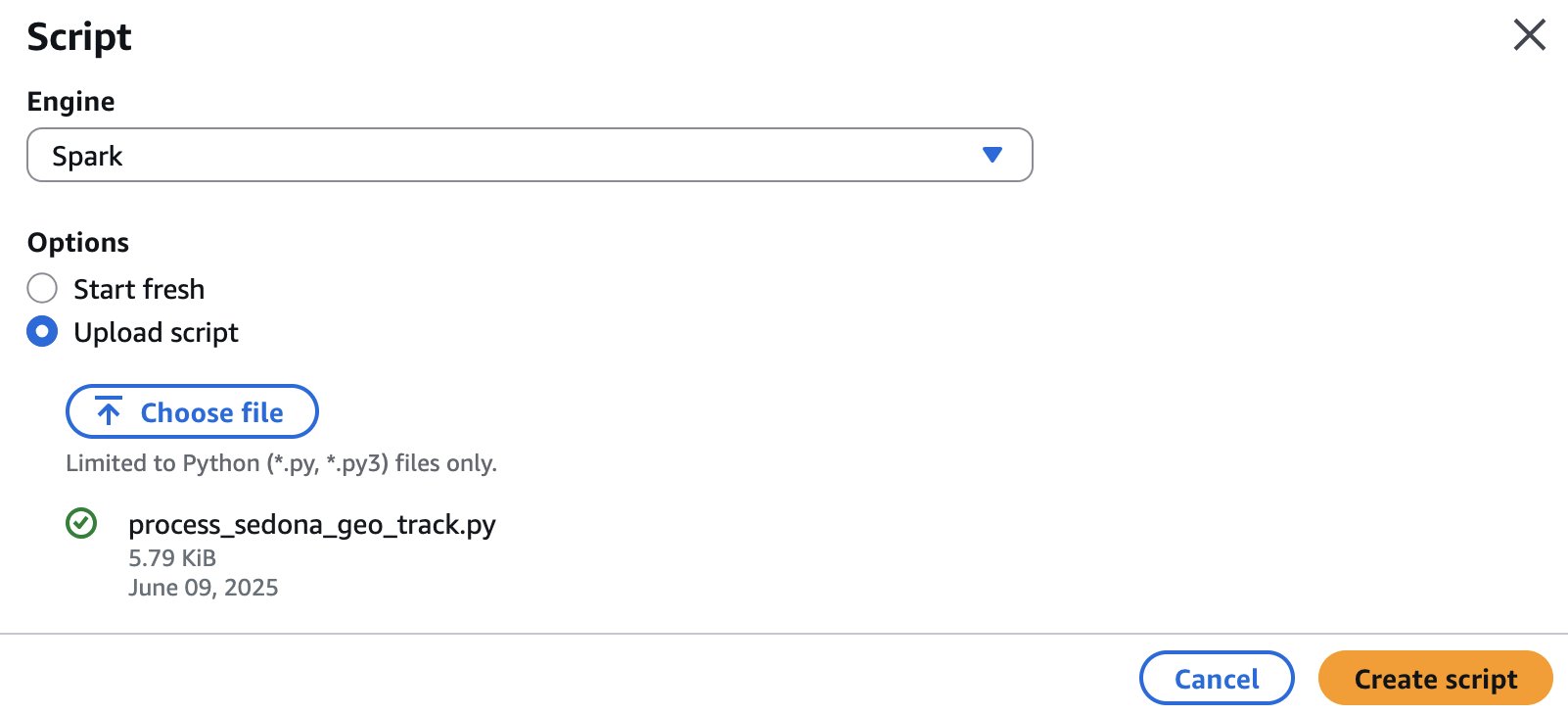
- Rename the job from Untitled to process_sedona_geo_track.
- Choose Save.
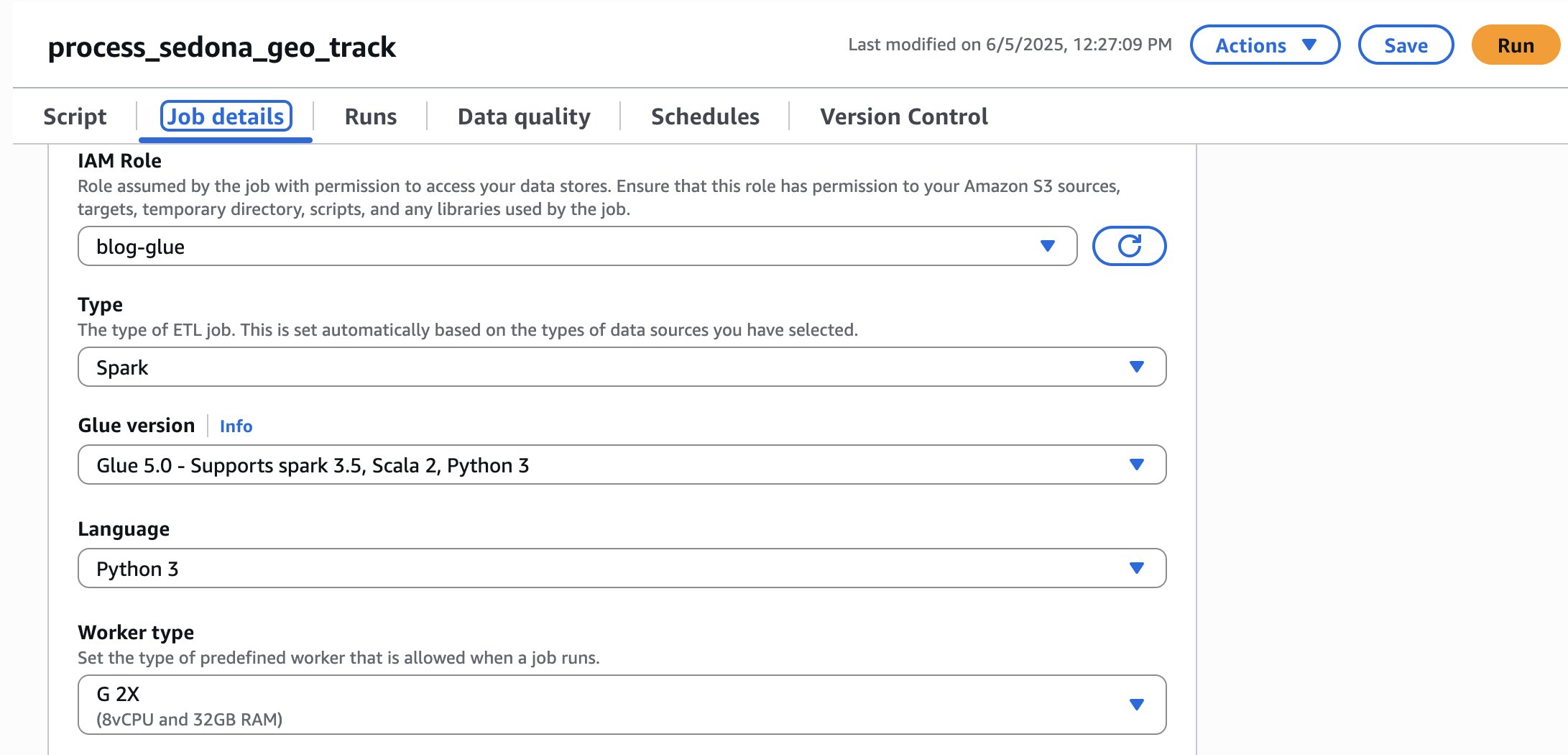
- Now, let’s set up the AWS Glue job. Choose Job Details.
- Choose the IAM Role created to be used with Glue. For this example, we use blog-glue.
- Set the Glue version to Glue 5.0 and the Worker type as needed. For this example, G.1X is sufficient, but we use G.2X to speed up processing.
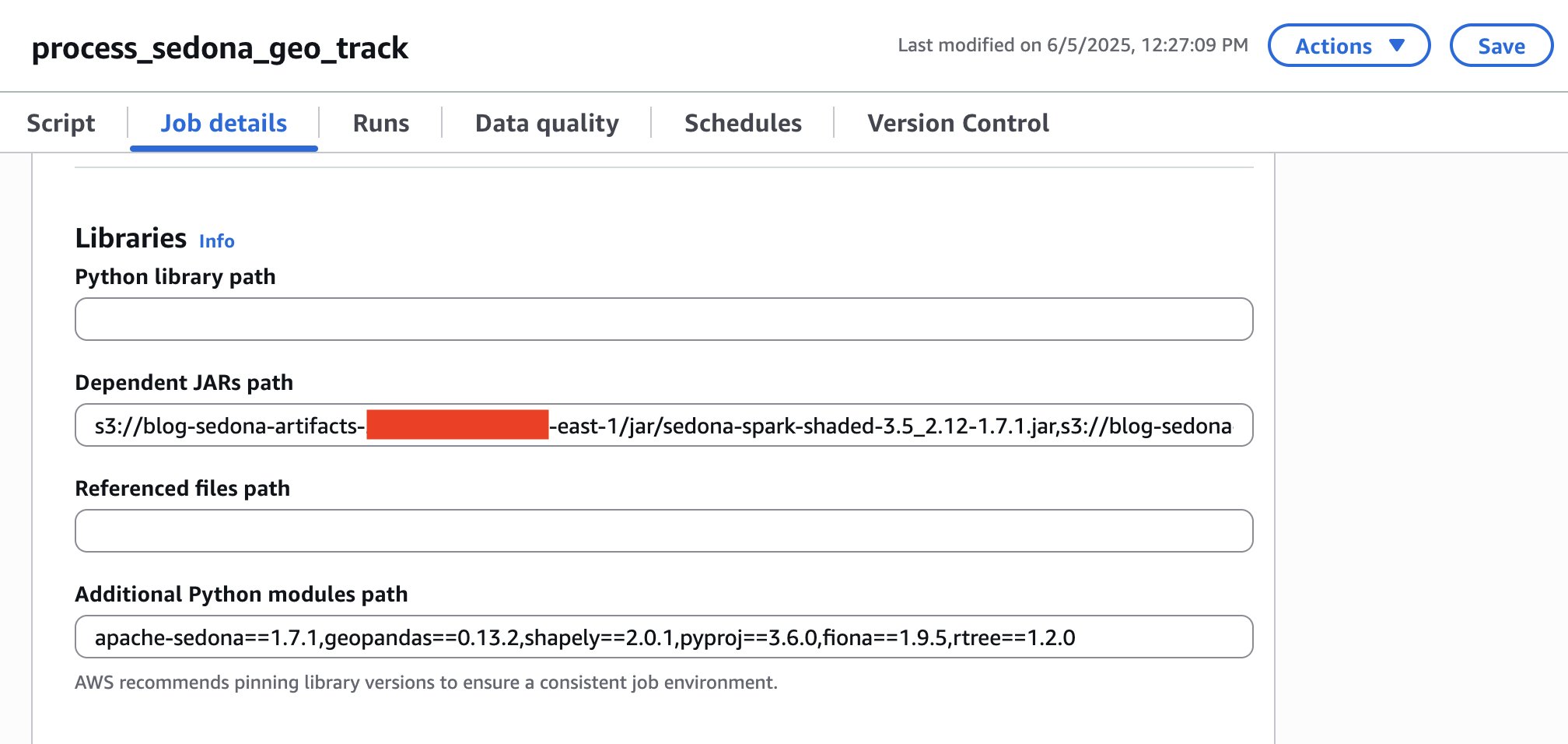
- Now, let’s import the libraries for Apache Sedona.
- In the Dependent JARs path, type the path of the JAR files for Apache Sedona that you uploaded in the preceding steps. For this example, we used
s3://blog-sedona-artifacts-- /jar/sedona-spark-shaded-3.5_2.12-1.7.1.jar,s3://blog-sedona-artifacts- - /jar/geotools-wrapper-1.7.1-28.5.jar - In Additional Python modules path, enter the modules for Apache Sedona: apache-sedona==1.7.1,geopandas==0.13.2,shapely==2.0.1,pyproj==3.6.0,fiona==1.9.5,rtree==1.2.0
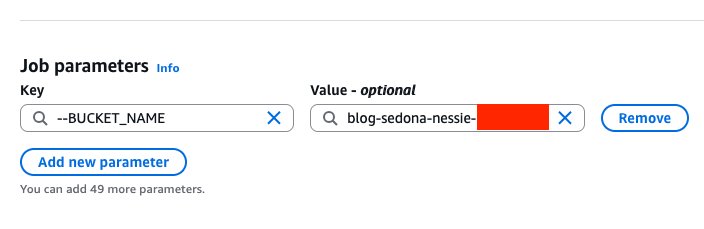
- In the Job parameters section, in the Key field, type —BUCKET_NAME. For its Value, enter your bucket name. In this example, ours is
blog-sedona-nessie-.-
- Choose Save.
Processing the geospatial flights data
Before we run the job, let’s understand how the code works. First, import the Apache Sedona libraries:
Next, initialize the Sedona context using an existing Spark session:
After that, create a function for handling compressed JSON data:
Add a function to transform raw tracking data into a structured format suitable for a valid coordinates process:
The flat_rdd variable applies these functions to the structured data from the original gzipped JSON. Each element in this RDD is a Row object representing a single data point from an aircraft’s trace, with fields for ICAO, timestamp, latitude, and longitude.
The ADSB trace files contain a deeply nested JSON structure where the trace field holds an array of mixed-type arrays, compressed in Gzip format. For this specific case, developing a UDF represented one of the most practical and efficient solutions. Since Gzip is a non-splittable format, Spark is unable to parallelize processing, constraining both methods to a single worker per file and processing the data multiple times across JVM decompression, full JSON parsing, and subsequent re-parsing operations. The UDF bypasses all of this by reading raw bytes and doing everything in a single Python pass: decompress → parse → extract → validate, returning only the small set of needed fields directly to Spark.
The Spark SQL query processes geographic trace data using the H3 hexagonal grid system, converting point data into a regularized hexagonal grid that can help identify areas of high point density. A resolution of 5 was adopted, producing hexagons of approximately 253 km² (roughly the same size as the city of Edinburgh, Scotland, which is approximately 264 km²), for its ability to effectively capture route density patterns at the city and metropolitan level.
Finally, this code prepares the datasets for visualization purposes. The first dataset is based on the aircraft unique identifier. The complete dataset for a single day can contain more than 80 million data points. A random sampling rate of 0.1% was applied, which proves sufficient to illustrate route density patterns without overwhelming the Kepler.gl browser renderer. The second dataset aggregates trace points into hexagonal spatial cells (result from the query above).
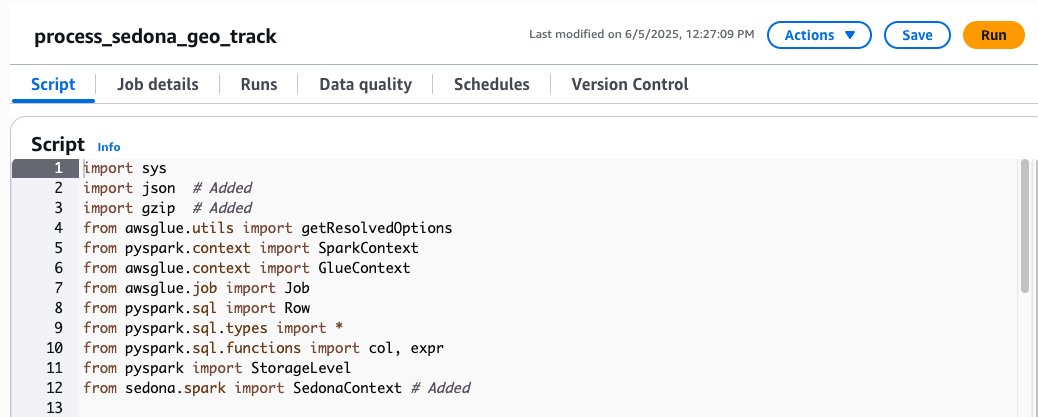
Now that we understand the code, let’s run it.
- Open the AWS Glue console.
- On the ETL jobs >> Notebooks page, choose the job name process_sedona_geo_track.
- Choose Run.
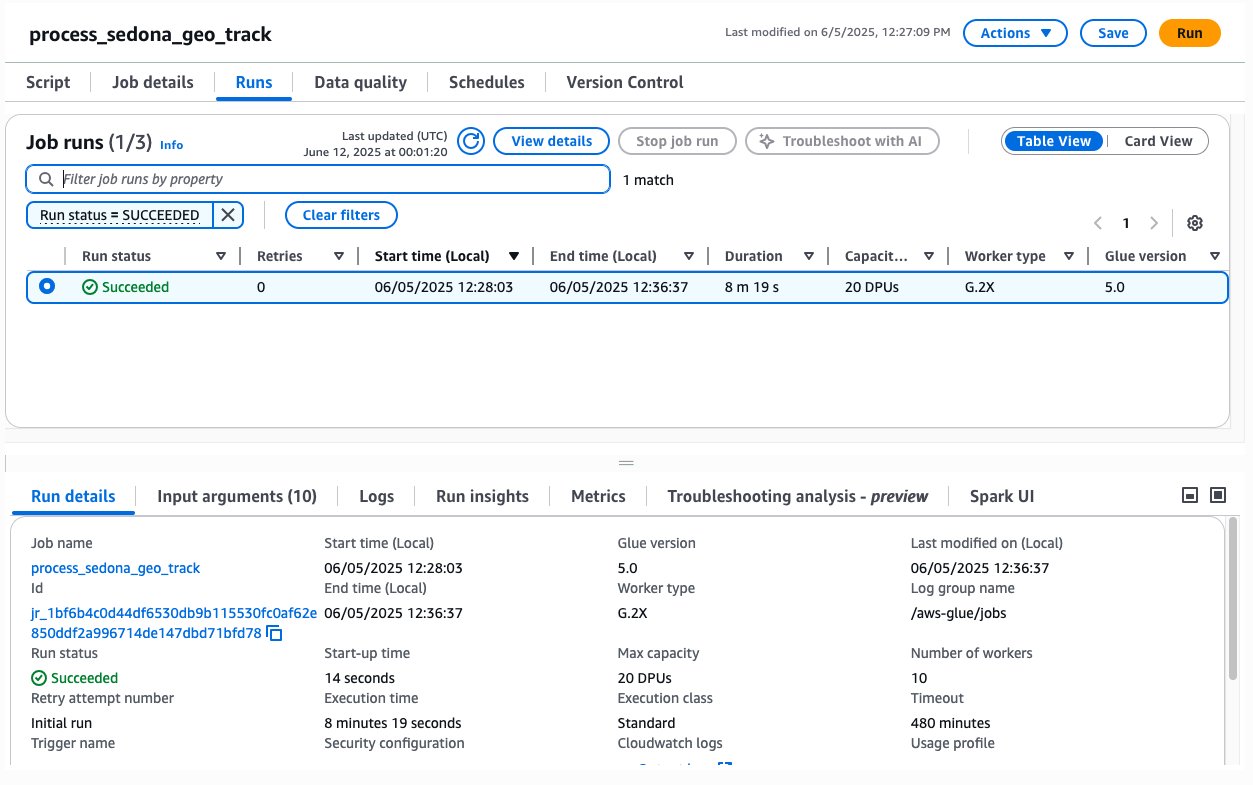
- Now, it is possible to monitor the job by choosing the Runs tab.
- It may take a few minutes to run the entire job. It took nearly 8 minutes to process approximately 2.50 GB (67,540 compressed files) with 20 DPUs. After the job is processed, you should see your job with the status Succeeded.
Now your data should be saved for a preview visualization demo in a folder named s3://blog-sedona-nessie-.
Performance insights
The workload characterization of this job reveals a CPU-intensive profile, primarily because of the processing of small binary files with GZIP compression and subsequent JSON parsing. Given the inherent nature of this pipeline, which includes Python UDF serialization and partial single-partition write stages, linear scaling does not yield proportional performance gains. The following table presents an analysis of AWS Glue configurations, evaluating the trade-off between computational capacity, execution duration, and associated costs:
| Duration | Capacity (DPUs) | Worker type | Glue version | Estimated Cost* |
| 10 m 7 s | 32 DPUs | G.1X | 5 | $2.34 |
| 11 m 50 s | 10 DPUs | G.1X | 5 | $0.88 |
| 19 m 7 s | 4 DPUs | G.1X | 5 | $0.59 |
| 8 m 19 s | 20 DPUs | G.2X | 5 | $1.32 |
*Estimated Cost = DPUs x Duration (hours) x $0.44 per DPU-hour (us-east-1)
Visualizing and analyzing geospatial data with Kepler.gl
Kepler.gl is an open-source geospatial analysis tool developed by Uber with code available at Github. Kepler.gl is designed for large-scale data exploration and visualization, offering multiple map layers, including point, arc, heatmap, and 3D hexagon. It supports various file formats like CSV, GeoJSON, and KML. In this use case, we will use Kepler.gl to present interactive visualizations that illustrate flight patterns, routes, and densities across global airspace.
Downloading the geospatial files
Before we can view the graph, we will need to download the flight files to our local machine, unzip them, and rename them (to make it easier to identify the files).
- Open your OS terminal command line.
- Create the folders to download the data processed in the steps before. In this case, we create kepler and kepler_csv.
#create kepler folders: first folder is to download the files, #second folder is to organize the files to use in the next step mkdir kepler mkdir kepler_csv - Replace the bracketed variables with your account and directory information, then download all the CSV files.
#copy the files from Amazon S3 to local machine aws s3 cp s3://blog-sedona-nessie-- /visualization/ / /kepler --recursive - Extract the files, rename them, and move them to another folder.
# Extract the files processed by Spark and Sedona gzip -d ./kepler/kepler_h3_density/*.gz gzip -d ./kepler/kepler_track_points_sample/*.gz # Rename the Spark output files to more readable names cd ./kepler/kepler_h3_density/ ls mv part-00000-*.csv kepler_h3_density.csv cd .. cd ./kepler/kepler_track_points_sample/ ls mv part-00000-*.csv kepler_track_points_sample.csv cd .. # Ensure the output folder exists mkdir -p ../kepler_csv # Copy the renamed CSV files to the folder that will be used as input in kepler.gl cp ./kepler/kepler_h3_density/*.csv ../kepler_csv cp ./kepler/kepler_track_points_sample/*.csv ../kepler_csv - Your kepler_csv folder should look similar to the return of the command below.
	#list the files in the kepler_csv directory
	ls -l
	total 11684
	-rw-rw-r-- 1 ec2-user ec2-user 8630110 Jun 12 14:47 kepler_h3_density.csv
	-rw-rw-r-- 1 ec2-user ec2-user 3331763 Jun 12 14:47 kepler_track_points_sample.csv
Visualizing the data in a graph
Now that you have saved the data to your local machine, you can analyze the flight data through interactive map graphics. To import the data into the Kepler.gl web visualization tool:
- Open the Kepler.gl Demo web application.
- Load data into Kepler.gl:
- Choose Add Data in the left panel.
- Drag and drop both CSV files (
flight_pointsandh3_density) into the upload area. - Confirm that both datasets are loaded successfully.
- Delete all layers.
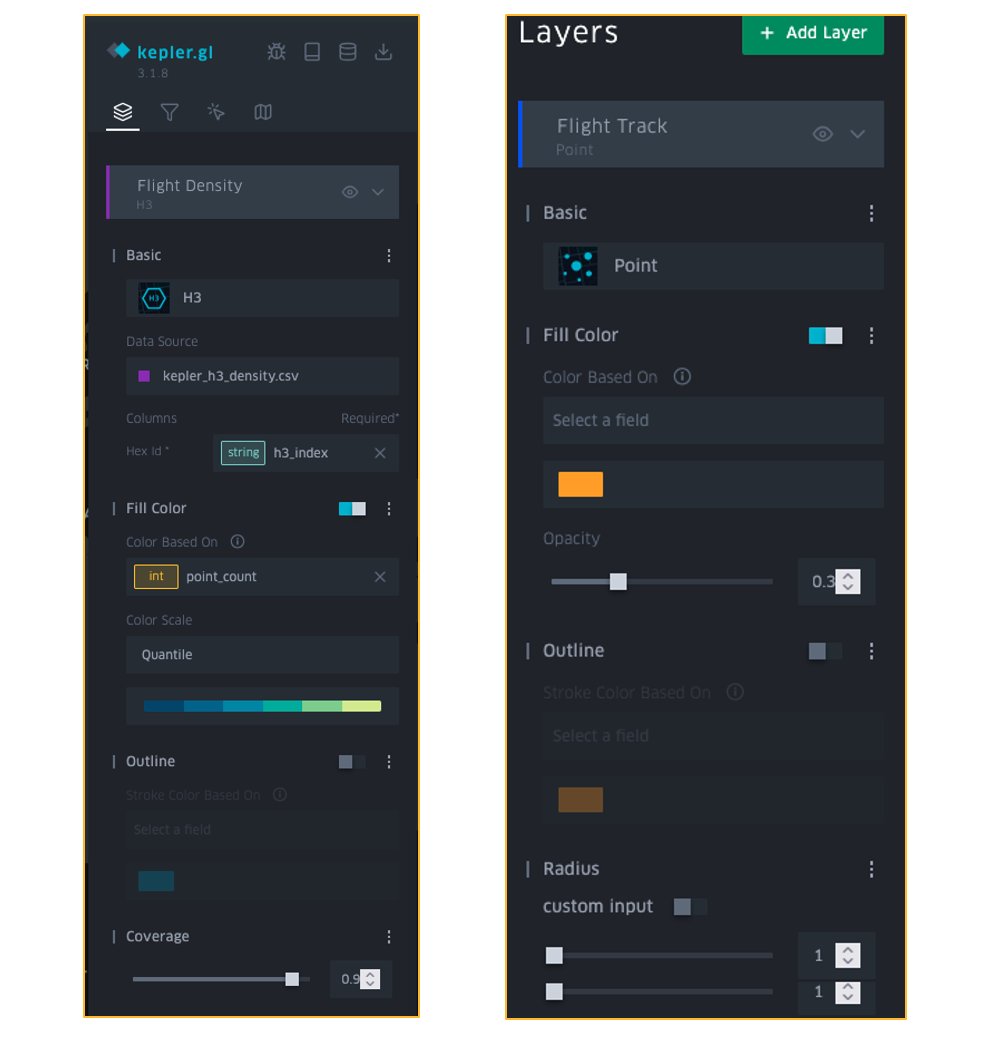
- Create the Flight Density Layer:
- Choose Add Layer in the left panel.
- In Basic, choose H3 as the layer type, then add the following configuration:
- Layer Name: Flight Density
- Data Source: kepler_h3_density.csv
- Hex ID: h3_index
- In the Fill Color section:
- Color: point_count
- Color Scale: Quantile.
- Color Range: Choose a blue/green gradient.
- Set Opacity to 0.7.
- In the Coverage section, set it to 0.9.
- Create the Flight Tracks Layer:
- Choose Add Layer in the left panel.
- In Basic, choose Point as the layer type, then add the following configuration:
- Layer Name: Flight Tracks
- Data Source: kepler_track_points_sample.csv
- Columns:
- Latitude: lat
- Longitude: lon
- In the Fill Color section:
- Solid Color: Orange
- Opacity: 0.3
- Set the Point’s Radius to 1
- The layers should look similar to the following figure.
- The graph visualization should now show flight density through color-coded hexagons, with individual flight tracks visible as orange points:
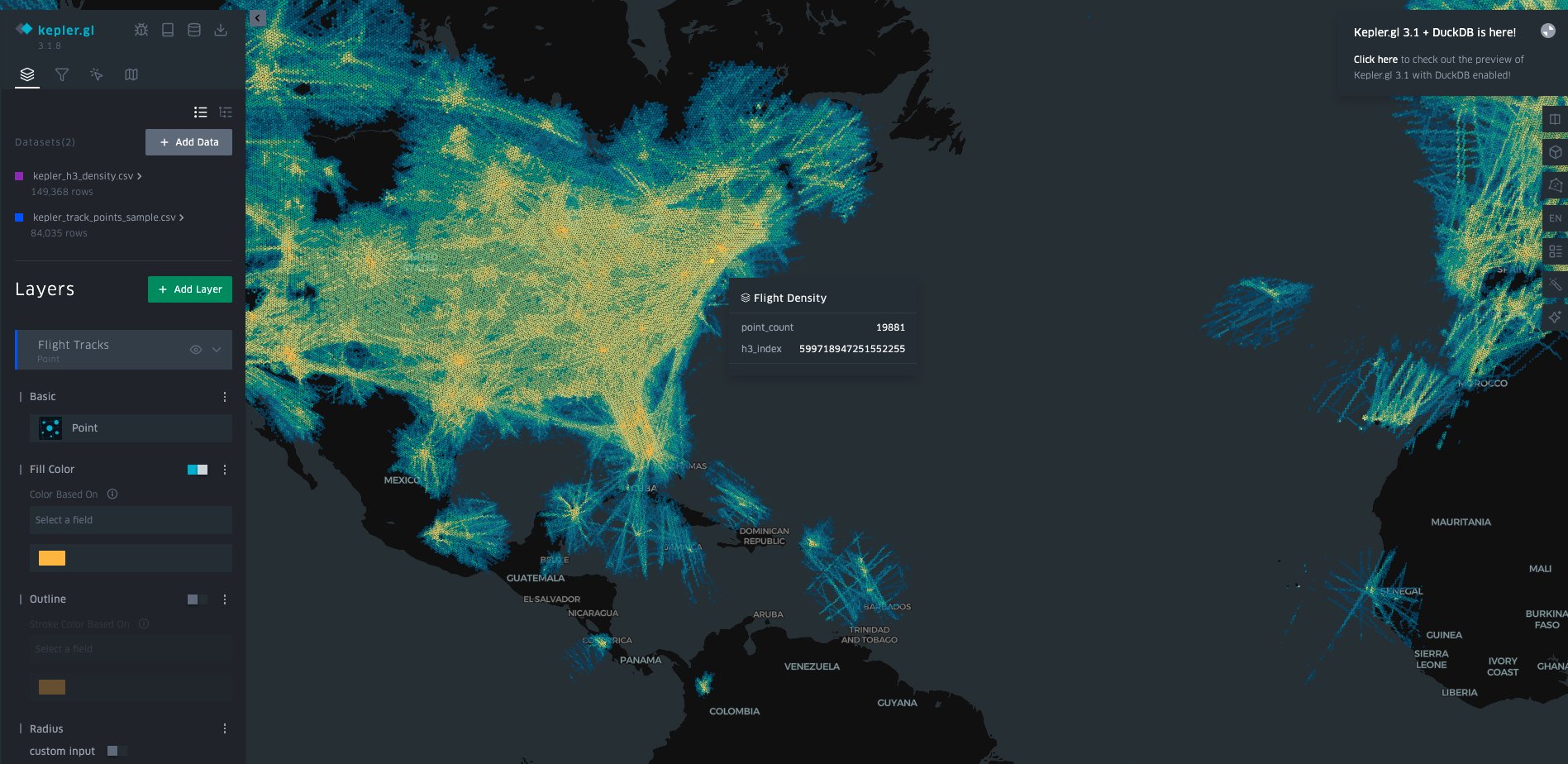
There you go! Now that you have knowledge about geospatial data and have created your first use case, take the opportunity to do some analysis and learn some interesting facts about flight patterns.
It is possible to experiment with other interesting types of analysis in Kepler.gl, such as Time Playback.
Clean up
To clean up your resources, complete the following tasks:
- Delete the AWS Glue job
process_sedona_geo_track. - Delete content from the Amazon S3 buckets:
blog-sedona-artifacts-and- blog-sedona-nessie-.-
Conclusion
In this post, we showed how processing geospatial data can present significant challenges due to its complex nature (from big data to data structure format). For this use case of flight trackers, it involves vast amounts of information across multiple dimensions such as time, location, altitude, and flight paths, however, the combination of Spark’s distributed computing capabilities and Sedona’s optimized geospatial functions helps overcome those challenges. The spatial partitioning and indexing features of Sedona, coupled with Spark’s framework, enable us to perform complex spatial joins and proximity analyses efficiently, simplifying the overall data processing workflow.
The serverless nature of AWS Glue eliminates the need for managing infrastructure while automatically scaling resources based on workload demands, making it an ideal platform for processing growing volumes of flight data. As the volume of flight data grows or as processing requirements fluctuate, with AWS Glue, you can quickly adjust resources to meet demand, ensuring optimal performance without the need for cluster management.
By converting the processed results into CSV format and visualizing them in Kepler.gl, it is possible to create interactive visualizations that reveal patterns in flight paths, and you can efficiently analyze air traffic patterns, routes, and other insights. This end-to-end solution demonstrates how a modern data strategy in AWS with the support of open-source tools can transform raw geospatial data into actionable insights.
About the authors
[ad_2]
Source link
