
Close Menu
  • Home
  • AI
  • Big Data
  • Cloud Computing
  • iOS Development
  • IoT
  • IT/ Cybersecurity
  • Tech
    • Nanotechnology
    • Green Technology
    • Apple
    • Software Development
    • Software Engineering

Subscribe to Updates

Get the latest technology news from Bigteetechhub about IT, Cybersecurity and Big Data.

    What's Hot

    Assessing the Feasibility and Advisability of a Civilian Cybersecurity Reserve

    March 11, 2026

    Building Greener With Steel: Why Prefab Metal Buildings Are Getting A Second Look

    March 11, 2026

    How Pokémon Go is giving delivery robots an inch-perfect view of the world

    March 11, 2026
    Facebook X (Twitter) Instagram
    Facebook X (Twitter) Instagram
    Big Tee Tech Hub
    • Home
    • AI
    • Big Data
    • Cloud Computing
    • iOS Development
    • IoT
    • IT/ Cybersecurity
    • Tech
      • Nanotechnology
      • Green Technology
      • Apple
      • Software Development
      • Software Engineering
    Big Tee Tech Hub
    Home»iOS Development»Using Xcode Previews in UIKit Development
    iOS Development

    Using Xcode Previews in UIKit Development

    big tee tech hubBy big tee tech hubMay 17, 2025013 Mins Read
    Share Facebook Twitter Pinterest Copy Link LinkedIn Tumblr Email Telegram WhatsApp
    Follow Us
    Google News Flipboard
    Using Xcode Previews in UIKit Development
    Share
    Facebook Twitter LinkedIn Pinterest Email Copy Link


    When SwiftUI was first released, one of the great features that piqued my interest was the instant preview function. This feature empowers developers to preview the user interface of any view within Xcode, entirely bypassing the need for a simulator.

    Prior to Xcode 15, the preview feature was exclusive to the SwiftUI framework. However, with the most recent release of Xcode, Apple expanded the utility of this feature to UIKit as well.

    In this tutorial, let’s see how you can make use of this preview feature when developing UIKit apps.

    Using #Preview to Preview View Controllers

    To preview a UIKit view or view controller in Xcode, all you need to do is set up a preview code block using the #Preview macro. Here is an example:

    #Preview {
        let vc = ViewController()
        return vc
    }

    For those who have experience using the #Preview feature in SwiftUI, the syntax should be quite familiar. Once you input the preview code, Xcode shows an additional pane, providing a preview of your view controller.
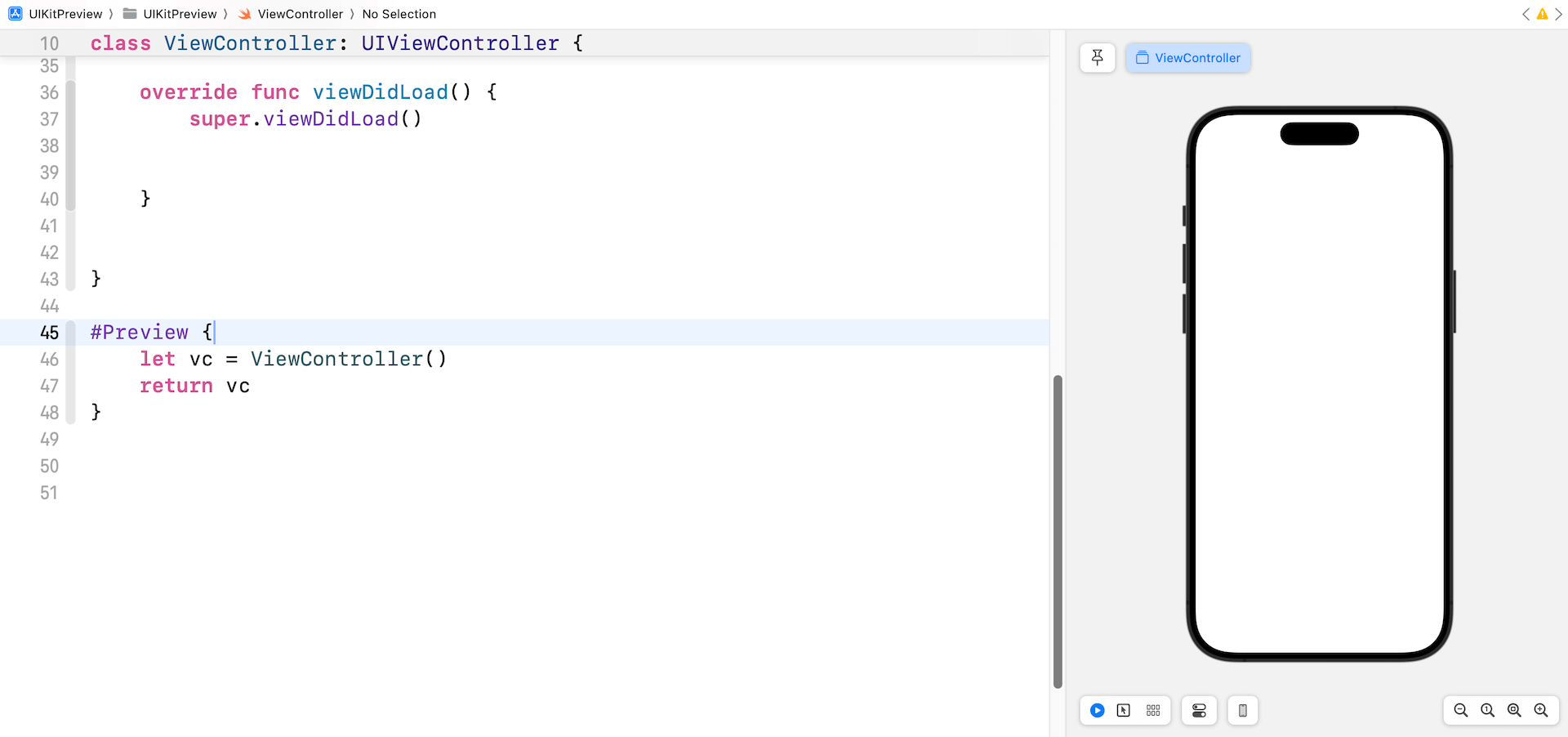
    uikit-preview-xcode-view-controller

    As you change the code of ViewController, Xcode should display the change instantly. For example, you can try to modify the code like below:

    class ViewController: UIViewController {
    
        lazy var helloButton: UIButton = {
            let button = UIButton(configuration: .borderedProminent())
    
            button.setTitle("Hello", for: .normal)
    
            let action = UIAction { action in
                print("Hello")
    
                let alertController = UIAlertController(title: "Hello", message: "Hello World", preferredStyle: .alert)
                let alertAction = UIAlertAction(title: "Okay", style: .default)
    
                alertController.addAction(alertAction)
                self.present(alertController, animated: true)
            }
    
    
            button.addAction(action, for: .touchUpInside)
    
            button.translatesAutoresizingMaskIntoConstraints = false
    
            return button
        }()
    
        override func viewDidLoad() {
            super.viewDidLoad()
    
            self.view.addSubview(helloButton)
    
            helloButton.centerXAnchor.constraint(equalTo: view.centerXAnchor, constant: 0).isActive = true
            helloButton.centerYAnchor.constraint(equalTo: view.centerYAnchor, constant: 0).isActive = true
    
        }
    
    }

    The preview pane will show a button that says “Hello”. Like in SwiftUI development, you can check the user interface straight in the preview. If you press the “Hello” button, a warning or alert will pop up.
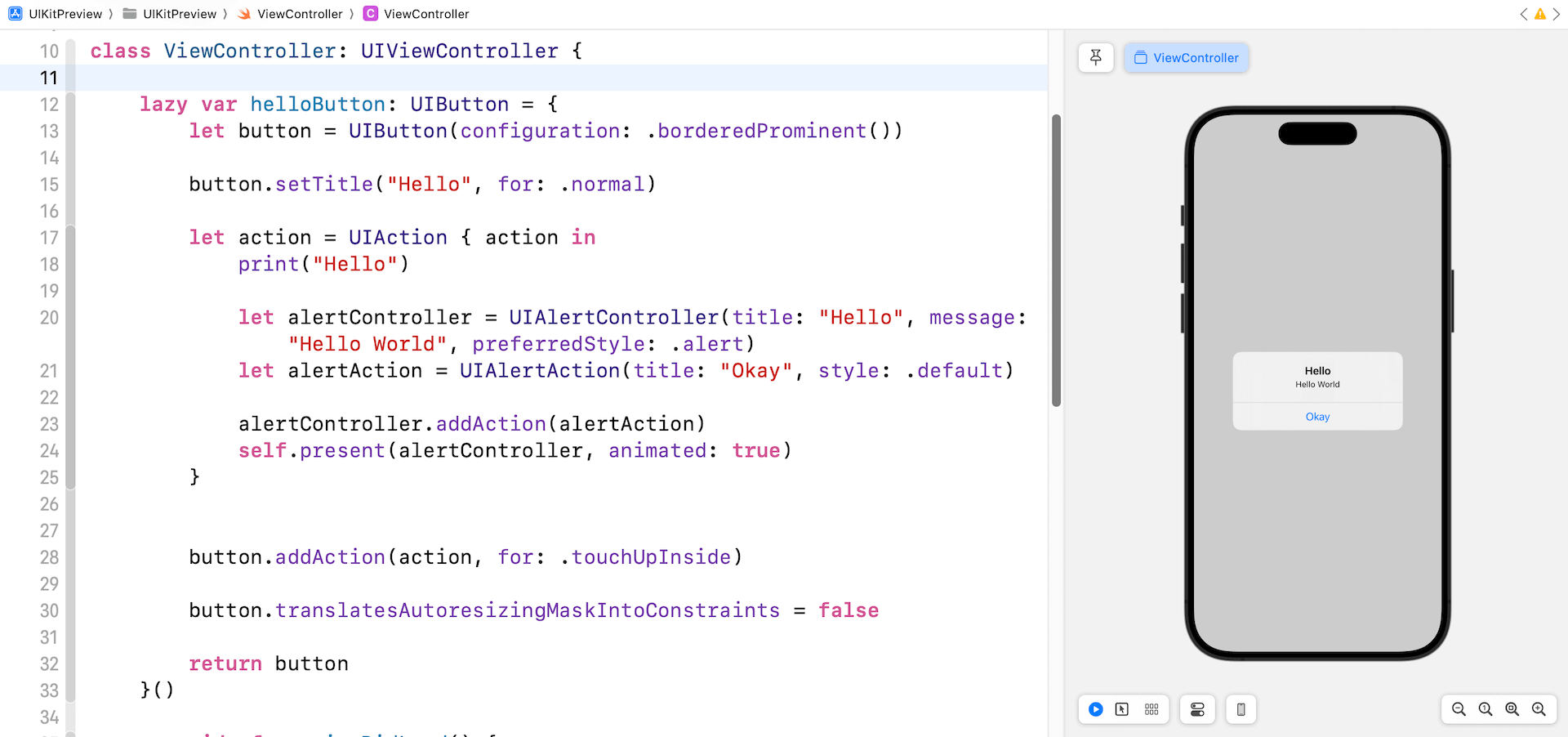
    Xcode-uikit-preview-button-action

    Previewing View Controllers in Interface Builder

    The #Preview macro can also be used to preview view controllers designed in Interface Builder (or Storyboard). Assuming you’ve created a view controller, configured with a storyboard ID, you can write the following code to preview it in Xcode:

    #Preview("LoginView") {
        let vc = UIStoryboard(name: "Main", bundle: nil).instantiateViewController(withIdentifier: "LoginView") as UIViewController
    
        return vc
    }

    You use the instantiateViewController method to instantiate the view controller and preview it in Xcode. Optionally, you can give the preview a name (e.g. LoginView).
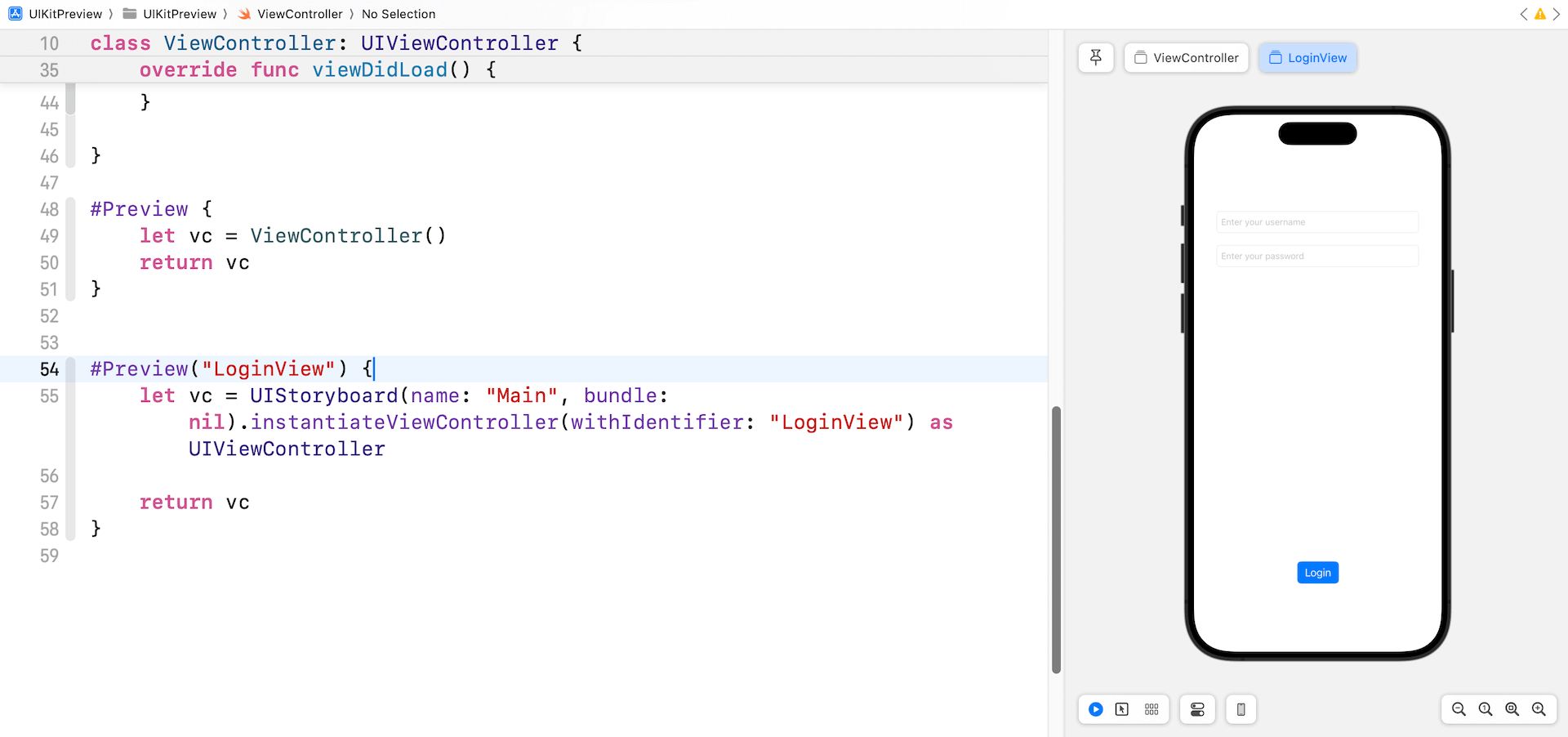
    swiftui-uikit-preview-storyboard

    Summary

    With the release of Xcode 15, Apple has expanded the instant preview feature, previously exclusive to SwiftUI, to UIKit as well. Developers can now preview the user interface of any UIKit view or view controller within Xcode using the #Preview macro, eliminating the need for a simulator. This feature also extends to view controllers designed in Interface Builder or Storyboard. Going forward, make the most of this preview feature to expedite your UIKit development process.


    Source link

    Development Previews UIKit Xcode
    Follow on Google News Follow on Flipboard
    Share. Facebook Twitter Pinterest LinkedIn Tumblr Email Copy Link
    tonirufai
    big tee tech hub
    • Website

    Related Posts

    uikit – Why the title doesn’t follow the navigation inline state in iOS 26

    March 11, 2026

    ios – OS emoji keyboard causes UI freeze in chat TextField Flutter

    March 10, 2026

    Future Updates | Cocoanetics

    March 9, 2026
    Add A Comment
    Leave A Reply Cancel Reply

    Editors Picks

    Assessing the Feasibility and Advisability of a Civilian Cybersecurity Reserve

    March 11, 2026

    Building Greener With Steel: Why Prefab Metal Buildings Are Getting A Second Look

    March 11, 2026

    How Pokémon Go is giving delivery robots an inch-perfect view of the world

    March 11, 2026

    Why AI Data Readiness Is Becoming the Most Critical Layer in Modern Analytics

    March 11, 2026
    About Us
    About Us

    Welcome To big tee tech hub. Big tee tech hub is a Professional seo tools Platform. Here we will provide you only interesting content, which you will like very much. We’re dedicated to providing you the best of seo tools, with a focus on dependability and tools. We’re working to turn our passion for seo tools into a booming online website. We hope you enjoy our seo tools as much as we enjoy offering them to you.

    Don't Miss!

    Assessing the Feasibility and Advisability of a Civilian Cybersecurity Reserve

    March 11, 2026

    Building Greener With Steel: Why Prefab Metal Buildings Are Getting A Second Look

    March 11, 2026

    Subscribe to Updates

    Get the latest technology news from Bigteetechhub about IT, Cybersecurity and Big Data.

      • About Us
      • Contact Us
      • Disclaimer
      • Privacy Policy
      • Terms and Conditions
      © 2026 bigteetechhub.All Right Reserved

      Type above and press Enter to search. Press Esc to cancel.