

I had a very busy fall this year, and now I can’t believe it’s been three months since my last blog, “Bringing Some Source of Truth to Your NetAI Agentic Playground.” That’s far longer than I had planned when I made my “public accountability statement” about my next blog post being about the work I had done to bring NetBox into my CML simulations in an easy and seamless fashion.
But today, I’m back. And eager to reveal two new contributions to the Cisco Modeling Labs (CML) community for your immediate use:
- A CML node and image definition for a NetBox server
- CML2NetBox, a Python utility that auto-populates NetBox based on a CML lab
Let’s dive into each of these options and see how they work!
NetBox server node for Cisco Modeling Labs
Not every CML network I build needs a NetBox server, but whenever I’m working on a new network automation project, or something that involves creating a replica (or close replica) of our production network—a “digital cousin,” so to speak—I will want to have a source of truth populated with data from the network simulation.
In the past, I have manually populated NetBox with data using APIs, scripts, or CSV imports. However, these options aren’t great, and they weren’t part of the lab itself. That’s where this new node definition comes in.
Now I can simply drag the “NetBox” node into the topology and configure it to auto-populate from the CML lab definition itself.
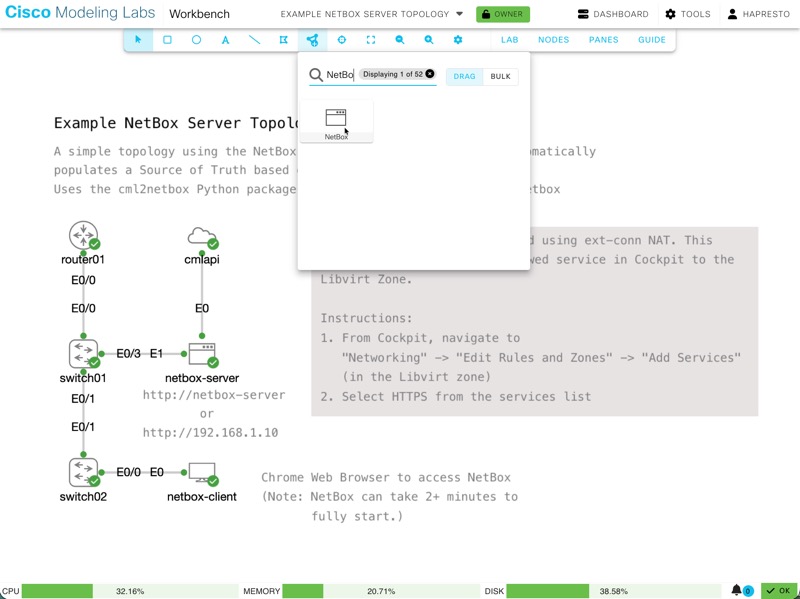
After that, just start the lab, and the node will read the CML lab information and automatically create sites, devices, IP addresses, and even cables connecting interfaces across all nodes in the topology.
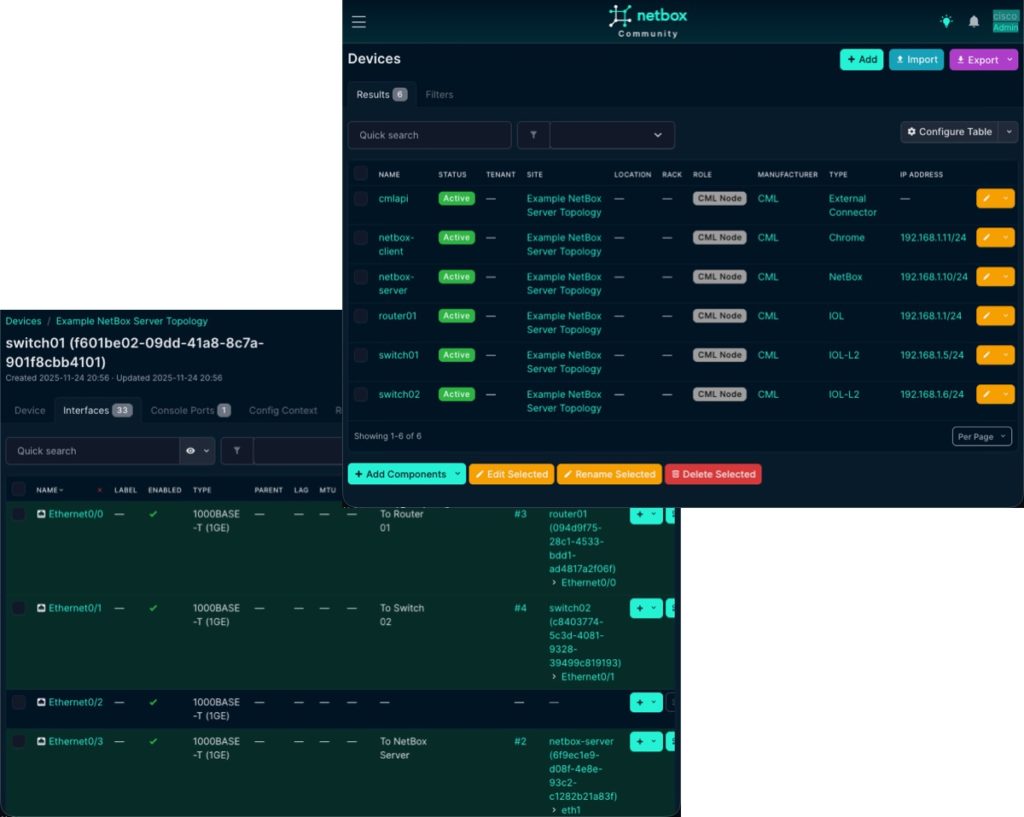
Pretty neat, right? For those of you interested in some technical details, let’s dive in a little deeper.
First up, the node definition, or more accurately, the image definition that has been built and shared, is based on the Alpine 3.21 image included on the CML 2.9 reference platform. The NetBox-Docker project was then used to deploy NetBox Community v4.4.5.
This NetBox server is intended to run within CML as part of lab topologies, and I wanted it to be very easy to use in these labs. So I made some “opinionated” choices in its configuration.
To align with other default credentials for nodes within CML, the admin user for NetBox has been pre-created with a username and password of cisco.
I also created an API token “0123456789012345678901234567890123456789” for this user. (You are welcome to change these default credentials after you start the node, but having an admin account and API access available at node startup lets you get started with your network automation work immediately without needing to set up NetBox yourself.)
In addition, I have pre-populated a Manufacturer called “CML” along with Device Types for each of the CML node types in the reference platform, as well as several additional node definitions from the cml-community and my personal use. Having them pre-created speeds up adding devices to NetBox. However, if you have a node definition that is NOT included in the base image, don’t worry. The code that populates NetBox will dynamically create new Device Types as needed.
While I worked to make using the NetBox node as easy as possible, there are requirements for adding it to a lab so it can access the CML lab details to populate NetBox. I’ve provided full details in the CML Community README for the node, and I encourage you to read them when you set up the new node on your own CML server. I’ll cover the highlights here as well.
For starters, the NetBox node will need connectivity to the CML server’s REST API through an “external connector” node. It can be either a bridge or a NAT-based external connector; however, for a NAT-based connector, you need to update a firewall rule in the CML Cockpit interface first. Full details on the change required and why are documented in the README.
Next, you’ll need to update the default CONFIG for the node with details for your CML server and the lab you want to synchronize with. The default day 0 config provided with the node includes detailed comments I left to help users understand the options and how to use the node. You’ll find optional blocks for customizing the server’s network configuration, but to automatically populate NetBox from CML, you’ll need to uncomment and provide details for a set of environment variables.
# export VIRL2_URL=
# export VIRL2_USER=admin
# export VIRL2_PASS=1234QWer
# export VIRL2_VERIFY_SSL=False
# export LAB_NAME="My CML Lab"
These values are needed because, while the NetBox server runs on the CML server, there is no way for the node to automatically “know” these details about the server. So we provide them as ENVs so the scripts that connect to CML know the address, credentials, and which lab on the CML server to synchronize with. I expect that you’ll synchronize the same lab that the NetBox node is running on, but you don’t have to. You could synchronize any lab from the CML server.
Speaking of scripts, you’ll see references to two scripts at the end of the configuration. These scripts first ensure NetBox is up and running, then connect to and sync from CML. The output from both of these scripts is saved on the node in two log files that you can review after the node finishes booting. Just connect to the NetBox server’s console and review the contents of the files.
((.venv) ) netbox-server:~$ cat startup_log.txt

Checking if NetBox ( is responding...
Site not responding, waiting 5 seconds... (attempt 1/48)
.
Site not responding, waiting 5 seconds... (attempt 14/48)
Site is responding! (attempt 15)

Checking if CML Controller ( is reachable...
Site is responding! (attempt 1)

Writing VIRL2 environment variables to /home/cisco/.profile...
Attempting to sync topology to NetBox...
🔄 Starting lab topology synchronization...
📡 CML Server:
🗄️  NetBox Server:
🧪 Lab Name: Example NetBox Server Topology

Beginning lab synchronization now.
Adding 6 nodes from CML lab 'Example NetBox Server Topology' to NetBox
📊 Processed 5/6 devices...
Adding cables for 6 nodes from CML lab 'Example NetBox Server Topology' to NetBox
📊 Processed cables for 5/6 devices...

Topology synced successfully.
While you are on the console, you can re-run the sync like this.
((.venv) ) netbox-server:~$ cml2netbox sync lab

🔄 Starting lab topology synchronization...
📡 CML Server:
🗄️ NetBox Server:
🧪 Lab Name: Example NetBox Server Topology
Beginning lab synchronization now.
Adding 7 nodes from CML lab 'Example NetBox Server Topology' to NetBox
📊 Processed 5/7 devices...
Adding cables for 7 nodes from CML lab 'Example NetBox Server Topology' to NetBox
📊 Processed cables for 5/7 devices...
You might wonder why you would want to re-run the sync? If you add more nodes to the CML topology after it starts, or add links between devices, those changes will be automatically added to NetBox. If you’ve deleted nodes or cables, the script won’t clean those out; you’ll need to delete them manually.
And you might also wonder what cml2netbox is? Well, that is the underlying “magic” that makes this node work. And it is the subject we’re going to talk about next!
CML2NetBox: A Python utility for EVERYONE!
I realize that some of you might want your CML lab data in NetBox, but not in a NetBox instance running in the CML lab; rather, in a NetBox server you already have running. If that sounds like you, then don’t fret, just pip install cml2netbox and have fun!
The truth is that the NetBox server node uses cml2netbox under the hood; it’s packaged directly into the node/image definition and automatically configured and run during node initialization. But now let’s look at how we can use the utility directly.
Similar to the node configuration, you’ll need to provide values for the CML server you’ll be synchronizing from, and you will also need to configure the details for the NetBox server you’ll be synchronizing to. An example .env file is provided with the code on GitHub.
# CML2NetBox Configuration Example
# Copy this file to .env and fill in your values

# CML Lab Details
LAB_NAME="Your CML Lab"
LAB_ID="your-lab-id-uuid-if-needed"

# CML Server Configuration
# Can also use VIRL2_* variants for backward compatibility
CML2_URL=
CML2_USER=your-username
CML2_PASS=your-password
CML2_VERIFY_SSL=True

# NetBox Server Configuration
NETBOX_URL=
NETBOX_API_TOKEN=your-api-token-here
NETBOX_VERIFY_SSL=True
Just copy this file and provide the data for your own servers.
For completeness’ sake, you can also provide all this data as command-line options when running cml2netbox, but I find setting them in a file is simpler than typing them every time I run the command.
Let’s see what options exist for the tool.
cml2netbox sync --help
Usage: cml2netbox sync [OPTIONS] COMMAND [ARGS]...

  Synchronization commands for CML and NetBox integration.

Options:
  --help  Show this message and exit.

Commands:
  device-types  Sync CML device types with NetBox device types.
  lab           Sync CML lab topology with NetBox.
There are two options. Nice.
You can “prepare” a NetBox server by creating the CML manufacturer and device types for all node definitions with cml2netbox sync device-types. However, this isn’t required. If you run cml2netbox sync lab before syncing the device types, the tool will create device types for each node in the lab. This will take a little longer the first time, as new device-types are created. But it does mean only the required device types will be created.
But the real fun comes when you sync a lab like this.
cml2netbox sync lab

🔄 Starting lab topology synchronization...
📡 CML Server:
🗄️  NetBox Server:
🧪 Lab Name: CCNA Prep 2025 S3E3 Advanced ACL Exploration
Beginning lab synchronization now.
Adding 8 nodes from CML lab 'CCNA Prep 2025 S3E3 Advanced ACL Exploration' to NetBox
📊 Processed 5/8 devices...
Adding cables for 8 nodes from CML lab 'CCNA Prep 2025 S3E3 Advanced ACL Exploration' to NetBox
In this example, I synchronized a 2nd CML lab from the topology above into the NetBox server to demonstrate what happens when you sync multiple CML labs into the same NetBox server and how they are differentiated.
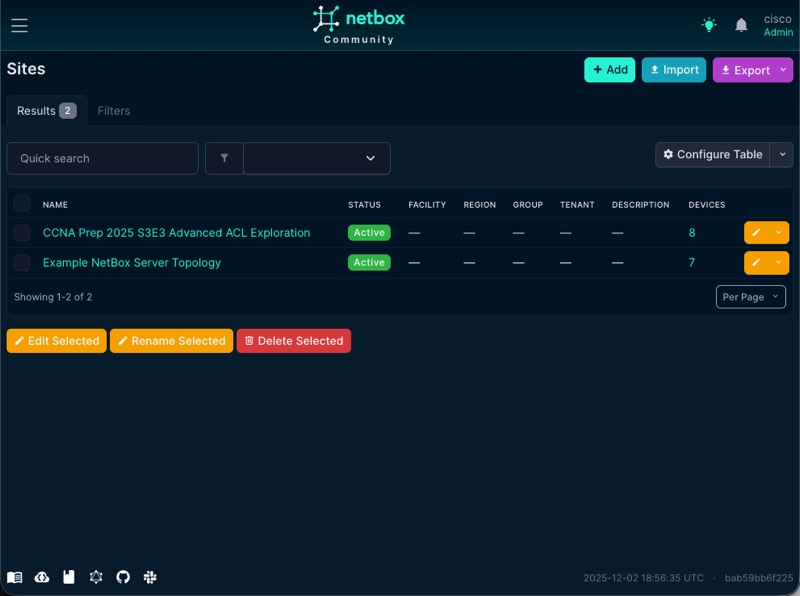
CML2NetBox will create a new NetBox Site for each CML lab synchronized. This means that you can use a single NetBox server to hold data from 1, 10, or even 100 CML topologies!
And one last note… cml2netbox will create a .log file for each run of the tool. By default, the logging level is INFO, but if you run in “verbose” mode, you’ll get DEBUG level logging in the file. This can be helpful if/when something goes wrong in a sync job, so you can figure out what happened. In my testing, this most often happens when you have multiple labs on a single NetBox server and encounter duplicate or conflicting objects.
cml2netbox -v sync lab

tail -n 10 ./20251202-140246-cml2netbox.log


2025-12-02 14:03:13 - httpcore.http11 - DEBUG - response_closed.started
2025-12-02 14:03:13 - httpcore.http11 - DEBUG - response_closed.complete
2025-12-02 14:03:13 - urllib3.connectionpool - DEBUG -  "GET /api/dcim/devices/?name=server-sw&site_id=2&limit=0 HTTP/1.1" 200 1924
2025-12-02 14:03:13 - urllib3.connectionpool - DEBUG -  "GET /api/dcim/interfaces/?device_id=14&name=port0&limit=0 HTTP/1.1" 200 2333
2025-12-02 14:03:13 - cml2netbox_pkg.netbox_helpers - INFO - Interface port0 already has a cable: 11
2025-12-02 14:03:13 - cml2netbox_pkg.netbox_helpers - INFO - No cables created for node server-sw
2025-12-02 14:03:13 - cml2netbox_pkg.netbox_helpers - INFO - Connecting cables for CML node setup-installation
2025-12-02 14:03:13 - cml2netbox_pkg.netbox_helpers - DEBUG - Skipping link where current node is not interface_a
2025-12-02 14:03:13 - cml2netbox_pkg.netbox_helpers - INFO - No cables created for node setup-installation
2025-12-02 14:03:13 - cml2netbox_pkg.cli - INFO - Completed synchronization of 8 nodes to NetBox
And done!
Let it not be said that Hank doesn’t keep his promises… it just might take me 3 months to get to it 😉
Anyway, I hope you enjoyed this blog post, and even more so, that you take advantage of one or both of the options I shared.
If you are new to CML, please check out Introduction to Network Simulations with Cisco Modeling Labs | CMLLAB Learning Path in Cisco U. You can also get started with Cisco Modeling Labs – Free Edition quick and easy.
Until next time!
Sign up for Cisco U. | Join the Cisco Learning Network today for free.
Learn with Cisco
X | Threads | Facebook | LinkedIn | Instagram | YouTube
Use #CiscoU and #CiscoCert to join the conversation.
Speak Your Lab into Existence with AI-Driven Cisco Modeling Labs and MCP
Using CI/CD Pipelines for Infrastructure Configuration and Management
